
Found a great tutorial on installing Layer Styles in PSE7 on Vista.....
HERE
Saturday, February 28, 2009

Organizing Brushes in PSE 7...creating your own abr file
How I organize my Custom Brushes
I save all my brushes under Photoshop Elements folder, because I want them to load automatically to see what I have. The problem I found was, even if I organized my brushes into folders, when I went to PSE they were all listed (and not organized into folders...like the default ones). So, I found that if I created my own .abr file with all the brushes located in each folder...I could then have a "organized" brush selection. So here is how I do it:
1. Organize your custom brushes in a folder that is NOT:
C:\Program Files\Adobe\Photoshop Elements 7.0\Presets\Brushes
(I chose to do it on my EHD)
Here is a screen capture of what mine looks like: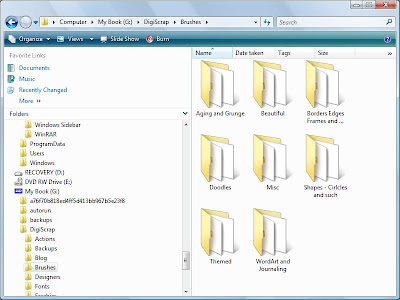 2. Then open up PSE go to Edit >Preset Manager
3. Load the brushes you want to be in your custom .abr file i.e. Folder/Collection
4. Hold down Cntrl Key and click on each one that you want in your new collection
(You will see that the ones selected now have a darker line around each one of them)
5. Now Click on Save set
6. Type in the name you want them to be (Don't use the name of an existing brush set)
7. You will not be able to see the brush set until you restart Elements so close it down and restart it.
This tutorial is based off of the instructions found here
I save all my brushes under Photoshop Elements folder, because I want them to load automatically to see what I have. The problem I found was, even if I organized my brushes into folders, when I went to PSE they were all listed (and not organized into folders...like the default ones). So, I found that if I created my own .abr file with all the brushes located in each folder...I could then have a "organized" brush selection. So here is how I do it:
1. Organize your custom brushes in a folder that is NOT:
C:\Program Files\Adobe\Photoshop Elements 7.0\Presets\Brushes
(I chose to do it on my EHD)
Here is a screen capture of what mine looks like:
 2. Then open up PSE go to Edit >Preset Manager
3. Load the brushes you want to be in your custom .abr file i.e. Folder/Collection
4. Hold down Cntrl Key and click on each one that you want in your new collection
(You will see that the ones selected now have a darker line around each one of them)
5. Now Click on Save set
6. Type in the name you want them to be (Don't use the name of an existing brush set)
7. You will not be able to see the brush set until you restart Elements so close it down and restart it.
This tutorial is based off of the instructions found here
Quick Tip #6 - How to add Actions and organize them in PSE 7 Vista
Quick Tip #6 - How to add Actions and organize them in folders PSE 7 Vista
Here is a brief description of how to add actions and add custom organization.
1. To add an action...copy your *.atn and *.png files to C:\ProgramData\Adobe\Photoshop Elements\7.0\Photo Creations\photo effects
2. Create a *.metadata.xml file (I just copied on of the ones that were in there from another existing action and edited it. Make sure it is exactly the same name as your action.
*****Note the spacing, spelling and characters. You can specify any category (ie folder) you want.
3. Rebuild the database .... to do this...make sure PSE 7 is shutdown. Rename the following file:
C:\ProgramData\Adobe\Photoshop Elements\7.0\ThumbDatabase.db3
4. Restart PSE 7...now this will take sometime for it to restart...but then you should have a "folder" called Special Effects under your photo effects tab and it should have all your actions!
Here is a brief description of how to add actions and add custom organization.
1. To add an action...copy your *.atn and *.png files to C:\ProgramData\Adobe\Photoshop Elements\7.0\Photo Creations\photo effects
2. Create a *.metadata.xml file (I just copied on of the ones that were in there from another existing action and edited it. Make sure it is exactly the same name as your action.
*****Note the spacing, spelling and characters. You can specify any category (ie folder) you want.
3. Rebuild the database .... to do this...make sure PSE 7 is shutdown. Rename the following file:
C:\ProgramData\Adobe\Photoshop Elements\7.0\ThumbDatabase.db3
4. Restart PSE 7...now this will take sometime for it to restart...but then you should have a "folder" called Special Effects under your photo effects tab and it should have all your actions!
Friday, February 27, 2009
PSE 7 - Crashes on Building Content and Effects
Okay...as I am adding actions I broke PSE :-( But I fixed it...
It kept crashing trying to build the db for the new actions I added. So to fix it I renamed the preferance file...located in C:\Users\\AppData\Roaming\Adobe\Photoshop Elements\7.0\Editor
I just renamed it with a .old while PSE was closed. That seemed to fix it...so now Im on to trying to add back my actions.
Wish me luck
It kept crashing trying to build the db for the new actions I added. So to fix it I renamed the preferance file...located in C:\Users\
I just renamed it with a .old while PSE was closed. That seemed to fix it...so now Im on to trying to add back my actions.
Wish me luck
Quick Tip #5 - Actions Not showing up in folders correctly
Quick Tip #5 - Actions Not showing up in folders correctly (PSE7)
Ok...as I work through PSE 7 I am in the process of installing my actions. I followed the directions listed HERE to do so. I also created XML files for each action so I could group them. For instance I have several CoffeeShop actions so I created a folder for them. So, I found out a couple things.....
1. You can't have _ in the name it didn't pick them up (even after I rebooted).
2. My folders weren't getting picked up and they were putting them all in the wrong spots....so here is what I did.
- You have to rebuild the ThumbDatabase.db3 file...on vista it is located:
C:\ProgramData\Adobe\Photoshop Elements\7.0
- To rebuild...just make sure PSE 7 is shut down and rename the file to ThumbDatabase1.db3
- When you restart PSE 7 you will notice that a new file is created and this should fix the problem.
Hope this helps!
Ok...as I work through PSE 7 I am in the process of installing my actions. I followed the directions listed HERE to do so. I also created XML files for each action so I could group them. For instance I have several CoffeeShop actions so I created a folder for them. So, I found out a couple things.....
1. You can't have _ in the name it didn't pick them up (even after I rebooted).
2. My folders weren't getting picked up and they were putting them all in the wrong spots....so here is what I did.
- You have to rebuild the ThumbDatabase.db3 file...on vista it is located:
C:\ProgramData\Adobe\Photoshop Elements\7.0
- To rebuild...just make sure PSE 7 is shut down and rename the file to ThumbDatabase1.db3
- When you restart PSE 7 you will notice that a new file is created and this should fix the problem.
Hope this helps!
Thursday, February 26, 2009
My Quick Tips
Here is a collection of tips that I have found useful. I use PSE 7 (and still learning) so some may be applied to other PSE verisions.
Quick Tip #1 - How to change the appearance of PSE7 (from dark to light)
Quick Tip #2 - List of PSE short cut keys
Quick Tip #3 - How to remove object from background
Quick Tip #4 - Add a border around a photo
Quick Tip #5 - When adding actions, folders aren't showing up correctly
Quick Tip #6 - How to add Actions and organize them in PSE 7 on Vista
Quick Tip #1 - How to change the appearance of PSE7 (from dark to light)
Quick Tip #2 - List of PSE short cut keys
Quick Tip #3 - How to remove object from background
Quick Tip #4 - Add a border around a photo
Quick Tip #5 - When adding actions, folders aren't showing up correctly
Quick Tip #6 - How to add Actions and organize them in PSE 7 on Vista
Quick Tip #1 - How to Change the Apperance of PSE 7
Quick Tip #1 - How to change your PSE Application Color (PSE 7 specific)
In PSE 5 it was a very light Grey color and when I open up PSE 7 it is a very Dark Grey....if you want to change that....here's how:
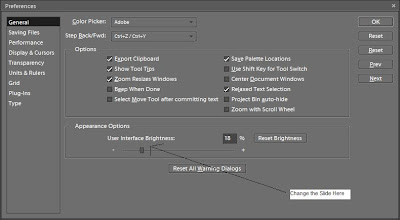
1. Go to Edit....Preferences....General (or Cntrl + K)
2. Under the appearance options there is a slider. You can change the appearance of PSE by moving the slider to the perfered color choice of greys. (See screen shot below)
Hope this helps!

In PSE 5 it was a very light Grey color and when I open up PSE 7 it is a very Dark Grey....if you want to change that....here's how:
1. Go to Edit....Preferences....General (or Cntrl + K)
2. Under the appearance options there is a slider. You can change the appearance of PSE by moving the slider to the perfered color choice of greys. (See screen shot below)

Hope this helps!
Subscribe to:
Posts (Atom)



 Posts
Posts


