A Mom Creating Memories

Thursday, March 5, 2009

New Layout

Here is my first layout in PSE 7...it has some new things that I had to get use to and I tried my hand at adding some custom drop shadows and recoloring things :-) I pulled from a lot of different kits to do this one. I even made my own paper! I did the stripped one :-)


Credits: Green - LHowell_Botanicals_Green (adjusted) , Strip - My creation...used SG Grungella Brush and Overlay from SG, nm_i_heart_school,paper_school_sayings,lgrier_aspringykindofthing_solid4 (adjusted),yellow polka dot_embracelife_sandyKrieger_MemoryMakers, ia_tape measure (Scrappers Guide - Feb Primier Kit), Soaring High - Stitching 2 EKippler (Scrappers Guide - March 2009 Premier) color removed, ia_stitching (Scrappers Guide - Feb Primier Kit), Soaring High - staple ekippler (Scrappers Guide - March 2009 Premier) and template sg_tplt_07_09_24 from Scrappers Guide....font is an abc kids font

Wednesday, March 4, 2009

How to Make Scalloped Edges

Hi All,

I was interested in scalloped edges in a layout and decided to do some research and figure out some ways to accomplish this.

I found some great tutorials:

http://spraguelab.squarespace.com/blog/2007/2/2/photoshop-friday-2007-5-scalloped-edges.html

http://www.twopeasinabucket.com/cg_display.asp?seed_id=21822

Have fun!

Sunday, March 1, 2009

Digital Scrapper

I decided to try out the Digital Scrapper Premier Membership at The Scrappers Guide. I liked that it wasn't a lesson to use their products..but more of here is how to do it on your own set of instructions. We will see how this month lesson goes. For those who are brand new to scrapbooking and want to learn...she also has a beginner instructional cd that goes with PSE or PS. If I hadn't spent ALOT of time already figuring PSE out...and I was just starting I would get it.

Saturday, February 28, 2009

Installing Layer Styles PSE7 on Vista

Found a great tutorial on installing Layer Styles in PSE7 on Vista.....


HERE

Organizing Brushes in PSE 7...creating your own abr file

How I organize my Custom Brushes

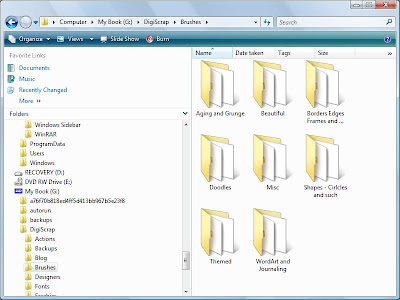
I save all my brushes under Photoshop Elements folder, because I want them to load automatically to see what I have. The problem I found was, even if I organized my brushes into folders, when I went to PSE they were all listed (and not organized into folders...like the default ones). So, I found that if I created my own .abr file with all the brushes located in each folder...I could then have a "organized" brush selection. So here is how I do it:


1. Organize your custom brushes in a folder that is NOT:
C:\Program Files\Adobe\Photoshop Elements 7.0\Presets\Brushes

(I chose to do it on my EHD)

Here is a screen capture of what mine looks like:2. Then open up PSE go to Edit >Preset Manager
3. Load the brushes you want to be in your custom .abr file i.e. Folder/Collection
4. Hold down Cntrl Key and click on each one that you want in your new collection
(You will see that the ones selected now have a darker line around each one of them)
5. Now Click on Save set
6. Type in the name you want them to be (Don't use the name of an existing brush set)
7. You will not be able to see the brush set until you restart Elements so close it down and restart it.

This tutorial is based off of the instructions found here

Quick Tip #6 - How to add Actions and organize them in PSE 7 Vista

Quick Tip #6 - How to add Actions and organize them in folders PSE 7 Vista


Here is a brief description of how to add actions and add custom organization.

1. To add an action...copy your *.atn and *.png files to C:\ProgramData\Adobe\Photoshop Elements\7.0\Photo Creations\photo effects

2. Create a *.metadata.xml file (I just copied on of the ones that were in there from another existing action and edited it. Make sure it is exactly the same name as your action.

*****Note the spacing, spelling and characters. You can specify any category (ie folder) you want.

3. Rebuild the database .... to do this...make sure PSE 7 is shutdown. Rename the following file:
C:\ProgramData\Adobe\Photoshop Elements\7.0\ThumbDatabase.db3

4. Restart PSE 7...now this will take sometime for it to restart...but then you should have a "folder" called Special Effects under your photo effects tab and it should have all your actions!

Friday, February 27, 2009

PSE 7 - Crashes on Building Content and Effects

Okay...as I am adding actions I broke PSE :-( But I fixed it...

It kept crashing trying to build the db for the new actions I added. So to fix it I renamed the preferance file...located in C:\Users\\AppData\Roaming\Adobe\Photoshop Elements\7.0\Editor

I just renamed it with a .old while PSE was closed. That seemed to fix it...so now Im on to trying to add back my actions.

Wish me luck